
Keeping AxManager updated helps users access new features, performance improvements, compatibility fixes, and important security updates. An outdated version can sometimes cause installation problems, unexpected errors, or compatibility issues with newer systems and software.
Updating AxManager is usually a straightforward process when the latest release comes from a trusted source. Before starting the update, users should check their current version, review the new release information, and make sure important settings or data are backed up when necessary.
Why Should You Update AxManager?
Regular updates can improve the overall experience with AxManager. Developers often release newer versions to fix bugs, improve stability, add useful features, and maintain compatibility with current operating systems.
Read More: Can AxManager Manage Installed Android Apps?
Using an older release may also create unnecessary problems. A feature described in a recent AxManager guide may not work correctly on an older version, while an update can resolve issues caused by outdated components.
How to Check Your Current AxManager Version
Before updating AxManager, check which version is currently installed on your device. Open AxManager and look for an About, Settings, or Version section, depending on the interface available in your release.
Note the displayed version number and compare it with the latest version available from the official AxManager source. Checking the version first prevents unnecessary downloads and helps confirm whether an update is actually required.
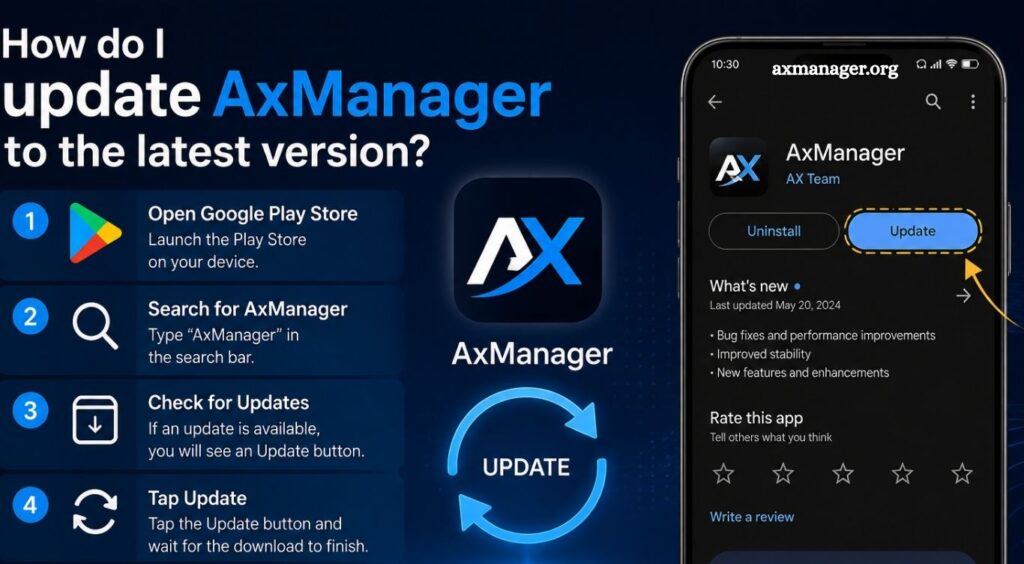
How to Update AxManager to the Latest Version
Start by visiting the official AxManager download or release page. Always use a trusted source when downloading software because unofficial packages can contain modified files or unwanted programs.
Download the latest version compatible with your operating system. Before launching the installer, close the currently running AxManager application. Running the installer while the application remains open can sometimes interfere with the update process.
Launch the downloaded installer and follow the setup instructions. If the installer detects an existing AxManager installation, it may upgrade the current version automatically while keeping existing configuration settings.
Once installation finishes, open AxManager and check the version information again. The displayed version should match the latest release you installed.
Should You Back Up AxManager Settings Before Updating?
Backing up important settings before an update is a sensible precaution. Most updates should preserve existing configurations, but unexpected installation problems can occasionally affect application files or settings.
If AxManager stores configuration files, profiles, or custom preferences that are important to your workflow, create a backup before replacing the older version. Keep the backup in a separate location so you can restore your previous configuration if needed.
What Should You Do If AxManager Does Not Update?
An unsuccessful update can happen for several reasons. The installer may lack sufficient permissions, the downloaded package may be incomplete, or an older AxManager process may still be running in the background.
Close AxManager completely and restart your device before trying again. Download a fresh copy of the latest installer from a trusted source and run the installation again.
If Windows displays a permission message, try launching the installer with administrator privileges. Users should also make sure enough storage space is available for the installation.
AxManager Update Troubleshooting
If AxManager opens normally but still shows the old version, completely close the application and launch it again. Check the version number from the application’s information section.
If the application fails to start after updating, restart the computer and try opening AxManager again. If the problem continues, reinstalling the latest release may help.
Users should avoid downloading random modified versions to fix update problems. Unverified packages can introduce security risks and may create additional compatibility issues.
How Often Should You Update AxManager?
There is no need to update software after every minor change unless the developer recommends it. However, installing stable releases regularly is a good practice, especially when an update contains important bug fixes, security improvements, or compatibility changes.
Check the official AxManager release information periodically to learn what has changed before installing a new version.
Tips for a Safe AxManager Update
Use the official download source whenever possible and verify that the downloaded file matches the expected release. Close AxManager before starting the installer and keep a backup of important configurations.
Avoid interrupting the installation process. After updating, open AxManager and test the features you regularly use. Checking everything immediately makes it easier to identify and resolve any issue caused by the update.
Conclusion
Updating AxManager to the latest version is generally a simple process. Check your current version, download the newest compatible release from a trusted source, close the existing application, and complete the installation. Afterward, verify the new version and test your important settings.
Pingback: Which Android versions are compatible with AxManager? - axmanager